
How to Make GTA AI Images and Videos From a Photo
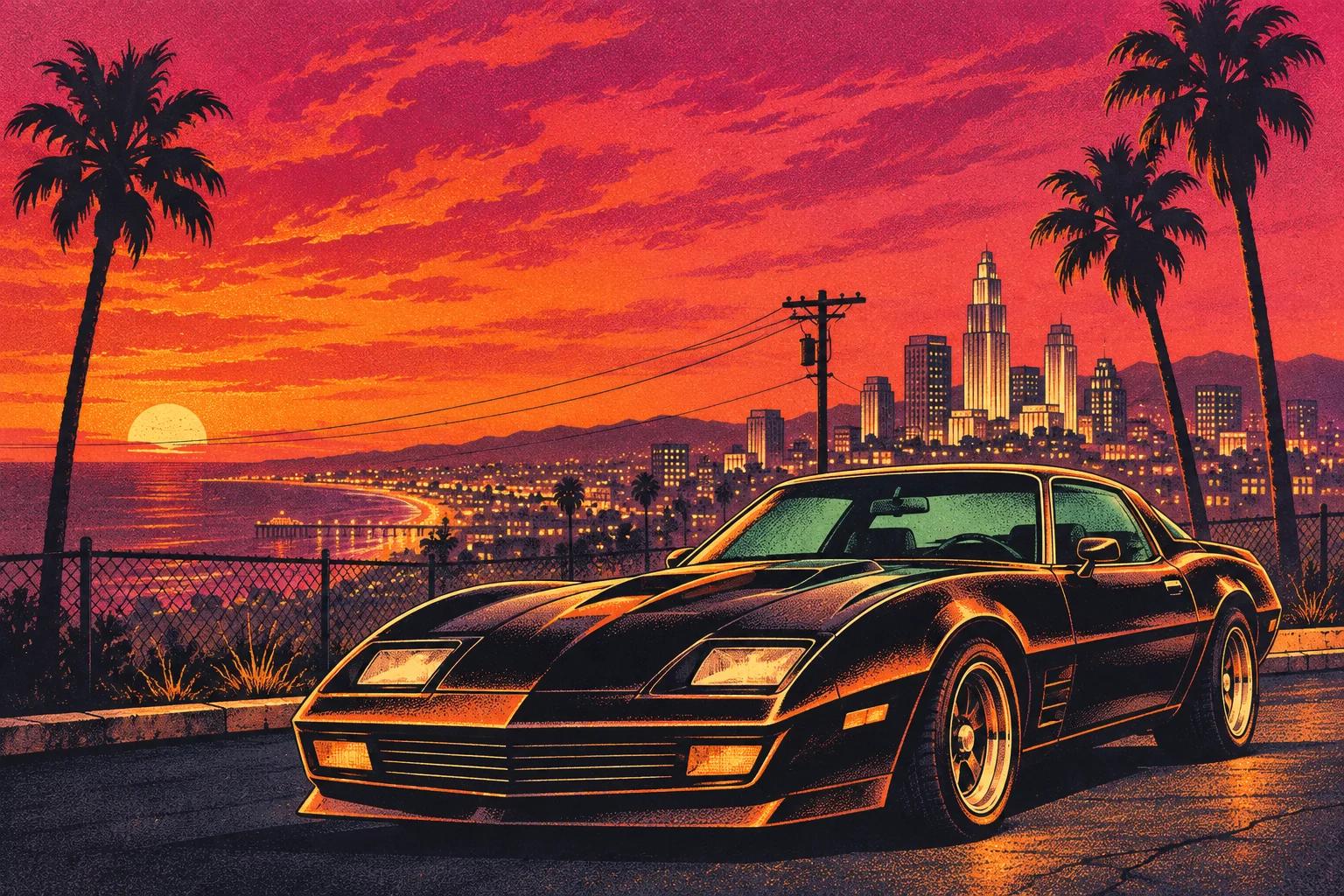
A portrait can become a loading-screen poster. A photo of your car can put it in the middle of a downtown burnout. Here’s how to choose the right template and what to look for in the finished result.
Pick a still image or a moving scene
A still image gives the model one frame to get right. Your photo supplies the subject, and the generator adds the inked edges, strong shadows and sunset colors you might associate with a loading-screen illustration. Stills work well for profile pictures and phone backgrounds, where a face needs to read clearly at a glance.
For video, camera movement matters as much as the look. A reference can supply the cuts, framing and timing while a separate photo supplies the person or vehicle. Some creators use a reference to restyle an entire clip. FaceOnTrend’s GTA AI video templates use a single photo to recast a specific subject in a preset scene. Read MindStudio’s overview of GTA-style image filters and video restyling.
Choose a photo for one of three GTA AI templates
- GTA 6 Loading Screen
- Choose a well-lit portrait with a clear face. You can also use a photo of your pet or a single photo with both people in it. The artwork downloads as a vertical PNG. For a car poster, see the guide to GTA 6-style vehicle art.
- GTA 5 Goodbye AI
- Upload a photo of the person you want to cast as the departing guest on the sunset pier. A clear face and visible hairstyle give the model more to work with when the scene cuts from a wider angle to a close-up.
- Dropped Truck GTA 6 AI
- Upload a photo of your car, pickup, SUV or van to take the place of the black lowered pickup. A front three-quarter shot shows the body, wheels and headlights together, which helps when the camera changes angles.
Check the details that can change between shots
Open a template and watch the preview before you upload a photo you have permission to use. Review the price and output options in the generator. Once the result is ready, look at the details that make the subject recognizable. For a portrait, check the eyes, hairline and glasses. For a vehicle, compare the wheel design, paint and roofline across the cuts. Inspect the finished scene before you download or share it.
Give fan-made clips a clear label
A generated trailer can look like gameplay in a short social clip. When you see one described as official, trace it back to the original publisher and check how the creator describes it. A label such as “AI fan edit” gives viewers the right context when you share your own work.